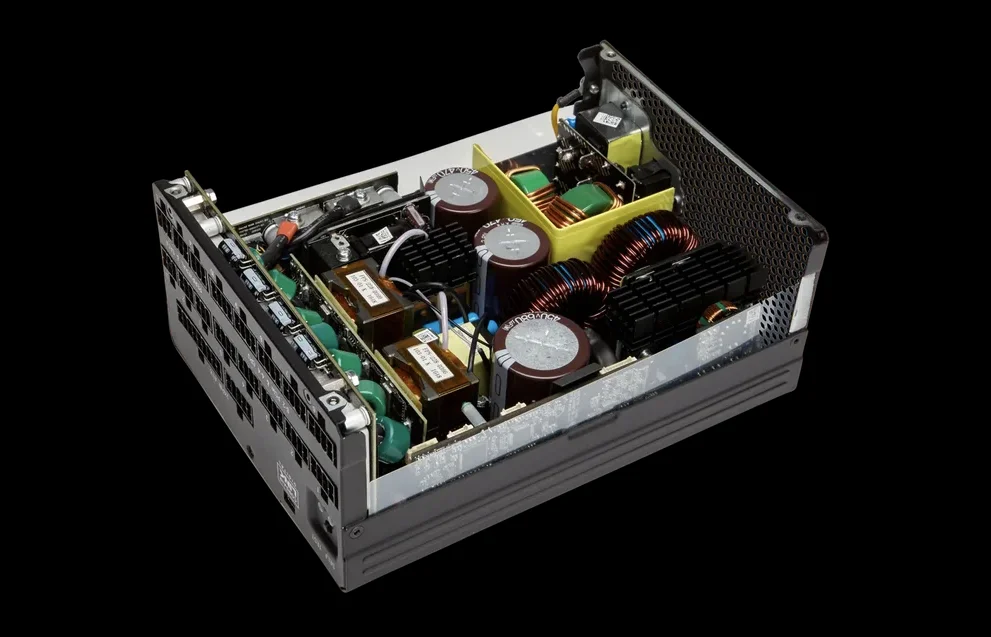
Coil whine is very common and normal. Remember, Best Buy is trying to sell you a new computer.
Coil whine is a high pitched whistling noise produced by electronic components, particularly inductors, when current is passed through them. It's annoying, but does not necessarily indicate a problem.

www.corsair.com
Though, based on what you're describing as games being a stuttery mess, it could also be as simple as your fans being clogged. Your PC will throttle itself and avoid spinning up its fans if it's not plugged in, which might explain the issue as well; when you plug it in, finally your graphics card and CPU are finally allowed to draw full power, so they spin up hard and thus the noise.
But again, it could also be a simple power supply issue; something like a bad capacitor or some other issue within the power supply itself. If I were troubleshooting this issue myself, I'd first start with the cheap and easy fixes that only cost you time:
1. Take off the bottom cover, use compressed air to blow out the fans, blow out the vents on the bottom cover and also blow out the keyboard, as there are often intake holes under the keyboard.
2. When you game, make sure you have airflow under your laptop. This can be as simple as propping up the back of the machine with a book that won't cover the vents on the bottom. CPU's and graphics cards need air and the constraints of a laptop case don't often allow that. I primarily game on my laptop and I have a little support thing I can put under the rear of it to prop it up when I'm gaming. This makes a noticeable difference in temps and performance.
Here's some data of mine I took down, testing my laptop with Nothing under it, a whole laptop cooling pad and just the 3d Printed Riser, testing with 3dMark
Nothing
CPU
Average -
79*c
Max -
95*c
GPU
Average -
76.8*c
Max -
84.1*c
Cooler
CPU
Average -
73.2*c
Max -
94*c
GPU
Average -
71*c
Max -
78.6*c
Riser
CPU
Average -
74.3*c
Max -
95*c
GPU
Average -
72*c
Max -
79.8*c
When your PC gets hot, it
will throttle it's power down to save itself, which you'll notice as games performing significantly worse.
3. UPDATE YOUR DRIVERS. Drivers sometimes break, I experienced this relatively recently myself with my laptop. My performance tanked and I had no idea why; I did a bunch of testing and was getting results that were significantly worse than when I bought the PC (Which was already 4-years old at my time of purchase). Turns out, my drivers broke somehow. After installing new drivers, my PC went right back to where it was supposed to be. So check for GPU drivers from Nvidia (assuming that's where your card is from), go to the manufacturer website for your PC and find any driver updates you can on there. Look for BIOS updates as well, all of it is important.
4. Right click on your desktop and find Nvidia Control Panel. Poke through there, look for the games you're playing where your performance is worse. Make sure on each of those games you have "High Performance Nvidia Processor" selected and not "Integrated Graphics". Your Integrated Graphics are no slouch, but your Nvidia GPU is better. I could see a game auto selecting the integrated ones and thus the performance issues (you can sometimes see this in a games options).
5. MAKE SURE YOU'RE IN HIGH PERFORMANCE MODE IN WINDOWS. See the little battery icon in the lower right corner? Click that, make sure Energy Saver isn't on. After that,
right click it and go to "Power and Sleep Settings" in that new window look for "Power Mode" and make sure it's selected as "Best Performance", if it's anything but, your PC won't be getting all the juice it can be.
6. Reinstall Windows. Make sure you've got any important data backed-up and then hit Windows key on your keyboard and type "Reset" (sans quotes) and access Reset This PC. Follow the on screen commands, I recommend a full reset and start and square one. You will need to redownload all your games, drivers, etc, but this will give you a fresh start.
6. If none of this works, find a good quality adapter for your PC. Assuming the PC is still charging, your charging port has a connection and
probably isn't broken. Plug in the new one and see how things go.
It's not unheard of that your laptop is broken, I don't want to give you that impression. Consumer grade hardware has come a long way in the years since I've been buying gaming laptops, but it can absolutely still happen. That said, I think it's worth it to do all these troubleshooting tips before you drop a bunch of money on a brand new machine.
Good luck. You can do this.
Edit: I should also say that if none of this works and you decide to go with a new machine, Lenovo LOQ (I think that's the brand?) is generally well regarded for robustness and longevity, as well as MSI.
@Zed Clampet may also have more input on that.